How to Schedule Out Your Pinterest Pins
Are people really on Pinterest all day scheduling and pinning in order to get 15+ new posts out there!?
No.
Well yes and no, but it’s not needed!
So take a big breath, we’re going to make this super simple! Because two things:
1. You’re new to posting on Pinterest or just getting more serious with it. We’re taking it easy.
2. Even if you’ve done it for a while, there’s some awesome tools to help schedule this so you do it once a month, or once a week and then you can walk away.
Let’s get into it!
We’ll break down:
- How to plan out pins
- The importance of using boards
- How to schedule using Pinterest
- When to get a scheduler for more content
How to Plan Out Pins
So the most frustrating thing about best practices with Pinterest posting and scheduling, is that there’s not set recommendation. And believe me, I’ve checked them all!
Some people post all their content for a blog in one day and call it good. Others will schedule it out over the next month, and others create 10 new pins for each and have it slowly drip out over time.
So here’s what I recommend. If you remember back in How to Set Up Your Pinterest Business Account, I said to be careful with sharing too much to the same link as it could be seen as spam? Well, we’re going to stick with that as I’ve seen another Pinterest agency say they do this too and they’ve been around for over a decade.
For smaller accounts or even ones starting out with years of blog posts to share, I’d start with one pin a day, Monday through Friday at the very least.
And here’s how that can look:
If you’re a photographer, you can share a wedding pin, family pin, senior pin, couple pin, and one promoting your
Instagram. That’s Monday through Friday.
If you’re a fitness coach, you can share a workout pin, recipe pin, shopping list, mindset quote, and one promoting your Instagram. Again, Monday through Friday.
If you’re a content creator, your topics could be a recipe, outfit of the day, podcast episode, YouTube video, Instagram promotion, even a reel you created. Could be Monday through Friday or you could share more.
If you have more than 7 blog posts, 1-2 freebies, and a few services you offer, THAT’S when you can start posting more than once a day if you want to. But again, choose when you’ll share each offer and just double up on those days.
The big goal and focus is to make sure you aren’t sharing the same URL each time. So it’s not the same blog post 4+ times in a day, or affiliate link or just Instagram page in general.
And remember how I explained to create different pin designs in How To Create New Pin Images? The reason we want a variety of designs to also go through, is when we create and share those pins to a board, we don’t want the same design coming up over and over again.
Even if the title is different and picture is changed out, it will still look boring and too repetitive when people come to your boards to see more.
So on that note…
The Importance of Using Boards
I break this down more in Why Pinterest Boards Are Important. But we want to be a little more specific on how this is going to work with your new and repetitive pins.
So you have 3-5 boards with different topics in each.
Photographers maybe have weddings, families, seniors, etc
Fitness coaches have workout plans, diet plans, workout clothes, etc.
Content creators have coffee recipes, book recommendations, fall outfits, etc.
When it comes to pinning, some of your topics may overlap, especially once you start creating more boards.
Even now though, maybe there’s a really nice family picture that was taken at a wedding, so it could go in either. Or you have a picture in a workout outfit you want to share to outfits, but it’s also what you wore when creating your new workout plan. Or even drinking your new coffee recipe while doing a book review.
We want different pin images so you can share content to different boards without having repeat styles or topics.
For me, I have a board on Business Organization, and Pinterest Basics. I’ll be putting this blog in both, but I want to make sure the pin designs are different enough to keep it interesting, but make sure I don’t use the same design 3 times in a row so they’re all right next to each other.
Hopefully this makes sense. But the overall goal is to keep it simple while also sharing as much as you can.
If this is getting to be a bit too much for you, don’t stress! Right now I’m running a 75% off special for my Pinterest Account Set Up offer where I’ll create your account, get 10 pins scheduled out and create a plan for the next month of content to make this easier for you. I have limited spots, so if you’re interested, you can read more about that offer.
How to Schedule Using Pinterest
Pinterest offers free scheduling for up to 30 days out and a max of 10 at a time. So I’ll go over how to schedule out your next 10 days of content with the pins you have.
You’re going to go to your account, and on the bottom right there should be a +. If you don’t see it, make sure you’re under Saved and not Created on your profile.
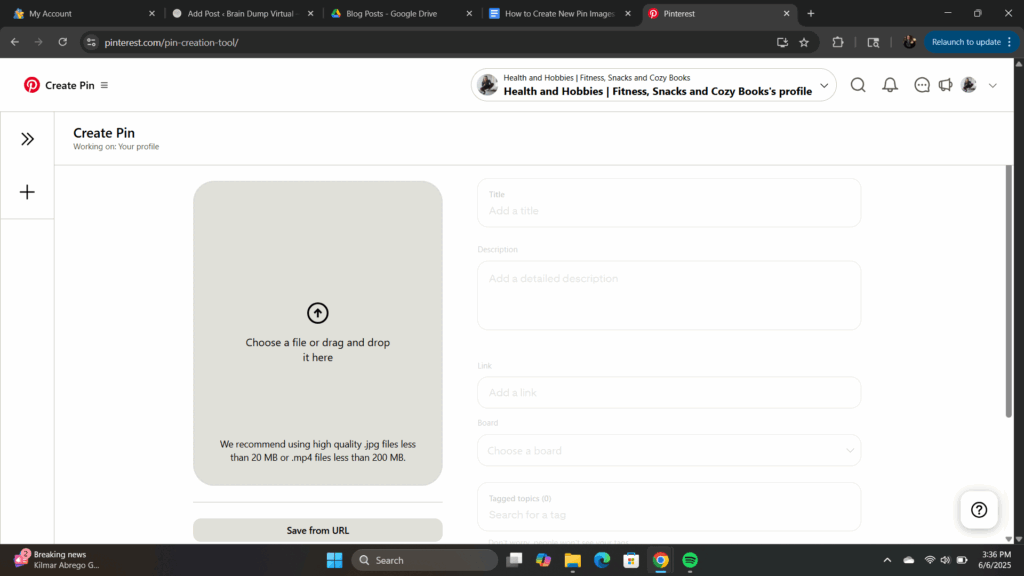
Once you click the +, you’ll choose Pin and it will take you to create your pin. You’ll upload the first pin you created, add the title and description. This can be the title of the blog, the topic talked about, or what the picture is showing. Again, focusing on the keywords and add them conversationally.
Check out The Importance of Keywords and Trends on Pinterest if you have questions about it.
You’ll then add the URL for where you’d like the pin to take someone that’s interested. Then you’ll choose the board it goes in. Again, it can go in multiple boards, but we’re just choosing one right now.
After that, at the bottom there’s a switch for schedule. You’ll hit that and then choose what day and time you’d like it to go out.
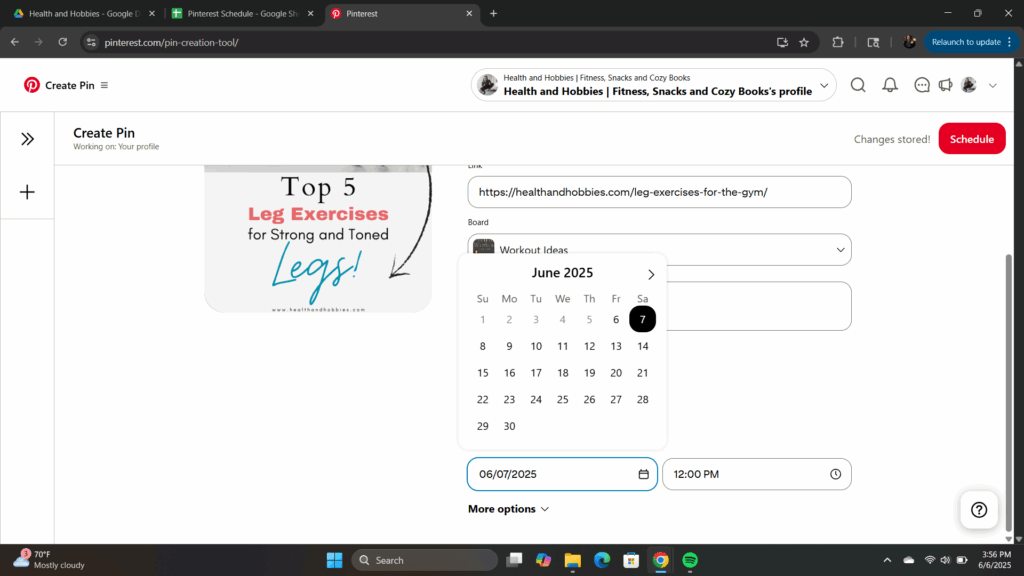
If you want a little more help in how to do that, get my FREE Pinterest Planner here where I’ll break down a simple suggestions for it.
Then you click schedule at the top and you’re done! Off to do 9 more and then you’re set until they’ve all been posted.
When to Get a Scheduler for More Content
Remember, we’re keeping it simple right now. You don’t have a whole lot of content, and the free option with Pinterest will help things started.
If you have more than 7 blog posts, 1-2 freebies, and a few services you offer, THAT’S when you can start posting more than once a day. And when you get to the point where you can share 5 times a day and need to schedule content out every-other day, check out Tailwind.
I’m not affiliated with them (maybe someday!) but I’ve been using the free option for my clients as they’re just starting out.
Tailwind is also nice as it will schedule farther out, and allow you to post to multiple boards in that schedule.
If you get to that point though, I’d be happy to help get your plan set up and take over managing your Pinterest account at that point. If you’re interested, check out the Pinterest Management option so we can set up a Discovery Call and see if we’d be a good fit together!
Otherwise, you can sign up for my Pinterest Account Set Up. Spots are limited before the price goes up, so if you are curious, I’d check it out now.
But you can do a lot with the basics Pinterest and even the free Canva version has.
It all starts with one pin and deciding to be consistent.
Happy pinning!